


 73
73
Signing Into OneDrive & Syncing Your Documents
Follow the steps below to sign into OneDrive and confirm your documents are syncing properly.
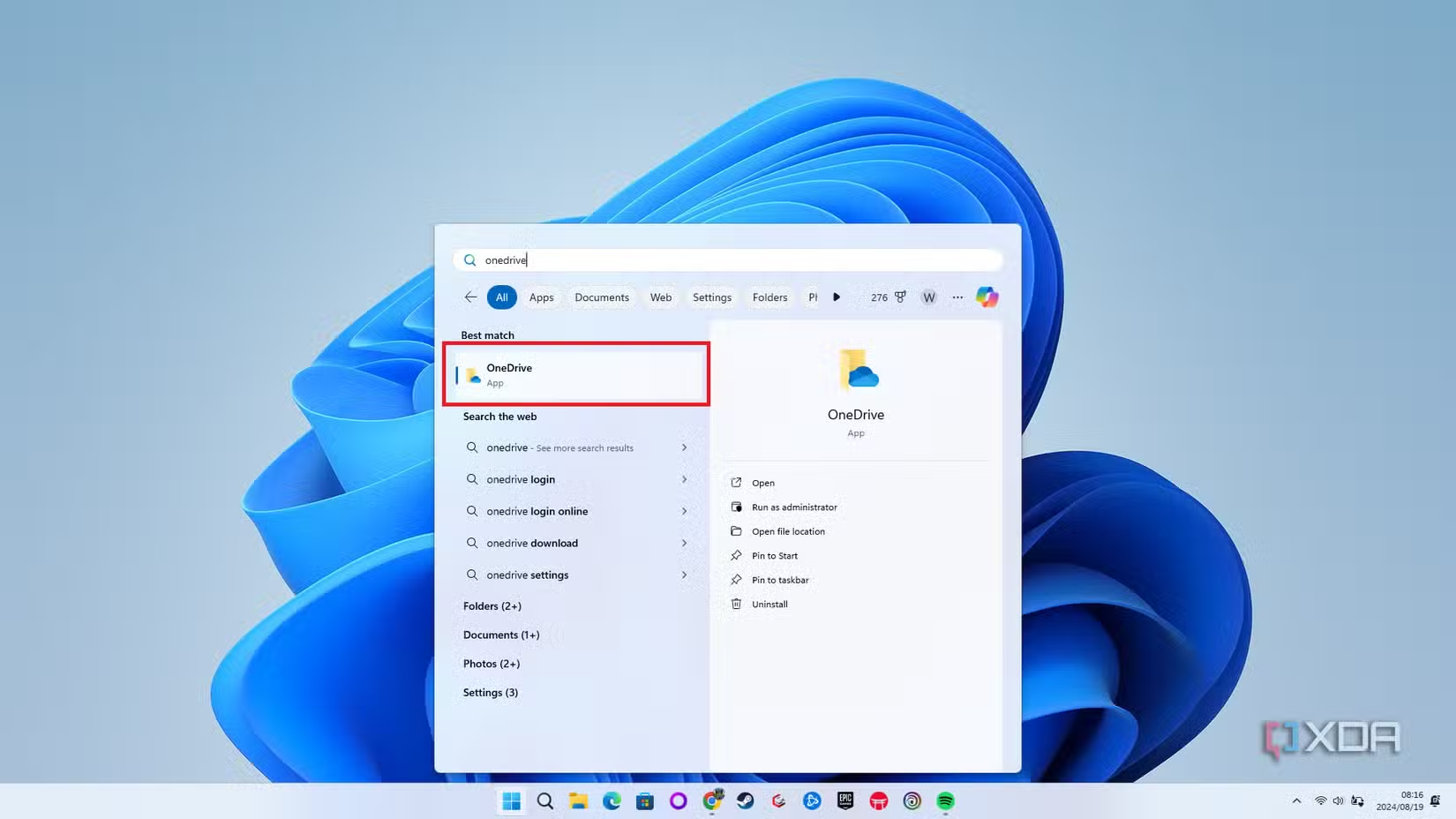
1. Open OneDrive
-
Click the Start Menu and type OneDrive.
-
Select the OneDrive app (cloud icon).
-
If prompted, click Sign In.
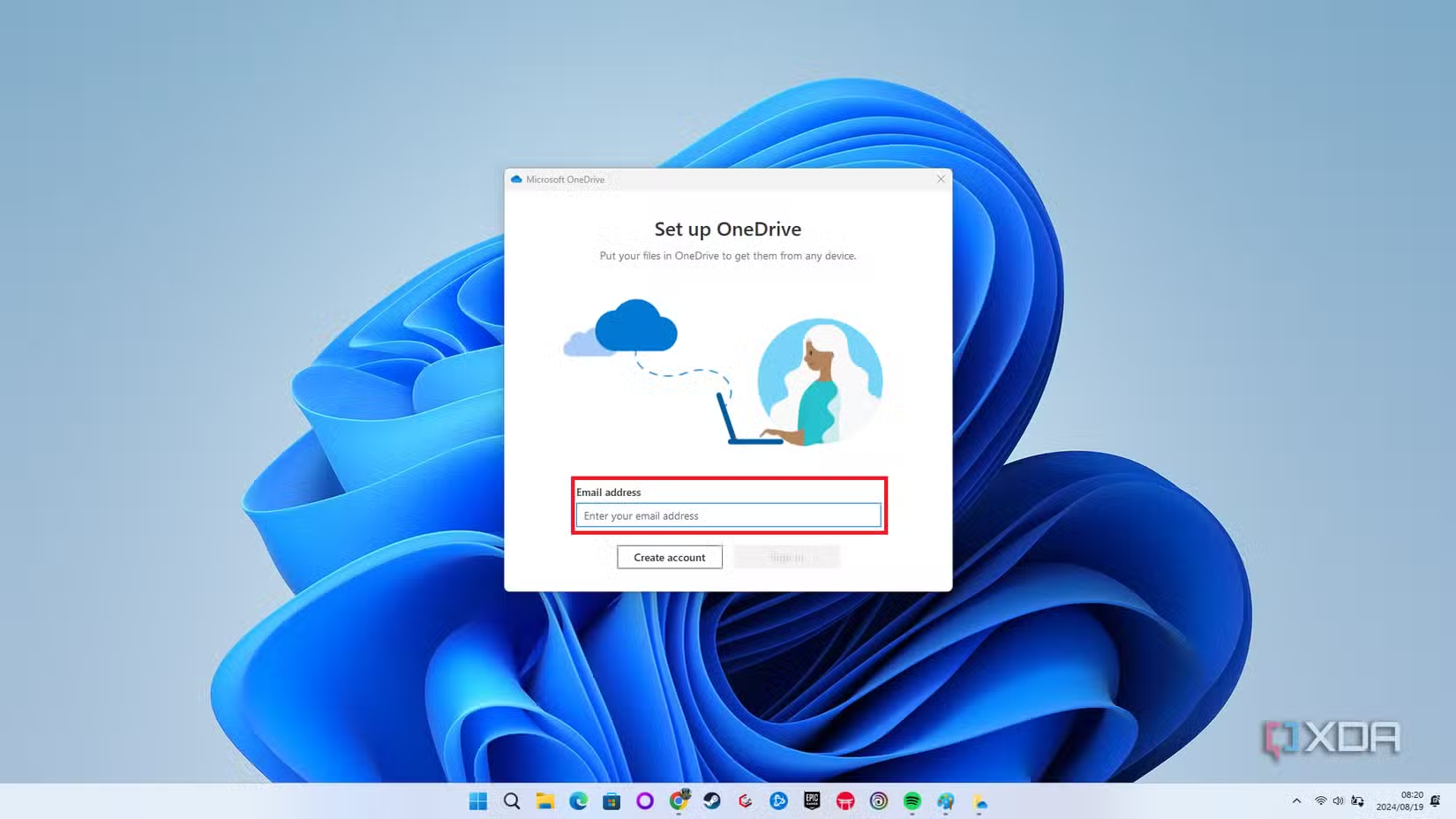
2. Sign In with Your Dolan Account
-
Enter your Dolan Auto Group email address
Follow the prompts to complete sign-in using your company password and multi-factor authentication (if prompted).
3. Turn On Folder Backup (Important Step)
To ensure your Desktop, Documents, and Pictures are backed up:
-
Click the cloud icon in the bottom-right corner of your screen (system tray).
-
Select the gear icon (Settings).
-
Click Sync and Backup.
-
Select Manage Backup.
-
Make sure Desktop, Documents, and Pictures are toggled ON.
-
Click Save changes.
4. Confirm Files Are Syncing
Look for the OneDrive cloud icon:
-
☁️ Blue cloud = Files are stored online
-
✔️ Green checkmark = Files are synced and available offline
-
🔄 Sync arrows = Files are currently syncing
Why This Matters
Signing into OneDrive ensures:
-
Your files are backed up
-
Nothing is lost during upgrades or computer replacements
-
You can access your files from any Dolan computer
If you are experiencing issues signing in, please submit a ticket by emailing:
[email protected]

