


 218
218
Tekion Multi-Authentication (MFA) Setup
Tekion now requires Multi-Factor Authentication (MFA) for login. This setup uses the Microsoft Authenticator app, which all users should already have installed.
Follow the steps below to complete your Tekion MFA setup when prompted.
1. Open the Microsoft Authenticator app
-
When prompted by Tekion to set up MFA, open the Microsoft Authenticator app on your mobile device.
2. Scan the QR Code
In the Microsoft Authenticator app:
-
Choose Scan a QR code
-
Scan the QR code displayed on the Tekion login screen
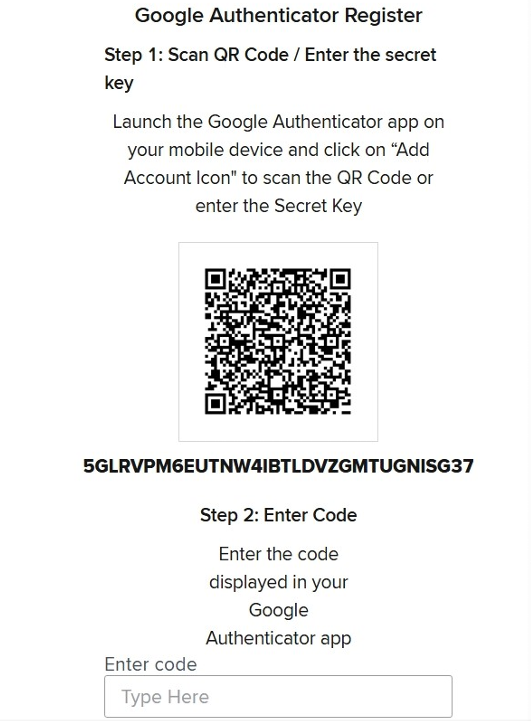
3. Enter the 6-Digit Code in Tekion
After scanning the QR code:
-
A 6-digit code will appear in the Microsoft Authenticator app
-
This code will be listed under an account titled “loginservice”
-
Enter the 6-digit code into Tekion when prompted to complete setup
4. (Optional) Rename the Authenticator Entry
You may rename the “loginservice” entry in Microsoft Authenticator for easier identification.
To rename it:
-
Tap loginservice in the Microsoft Authenticator app
-
Tap the Settings (gear) icon
-
Select Account name
-
Rename it to Tekion (or any name you prefer)
-
Save your changes
5. Trouble Entering the Verification Code
If Tekion is not accepting the 6-digit code from the Microsoft Authenticator app, try re-adding the account.
-
Open the Microsoft Authenticator app
-
Select the loginservice (or renamed Tekion) account
-
Delete/remove the account from the app
-
Return to the Tekion login screen and restart the MFA setup
-
Scan the new QR code and enter the newly generated 6-digit code
This will refresh the connection between Tekion and the Authenticator app and resolve most code entry issues.
Need Help?
If you experience issues setting up Tekion MFA or do not see the prompt, please submit a ticket by emailing:

