


 102
102
How to Change your Password
Note: If you are locked out of your computer, please use iam.dolansystems.com or contact us at [email protected].
These instructions are for users who are already logged in.
1. Press Ctrl + Alt + Delete
Hold all three keys at the same time.
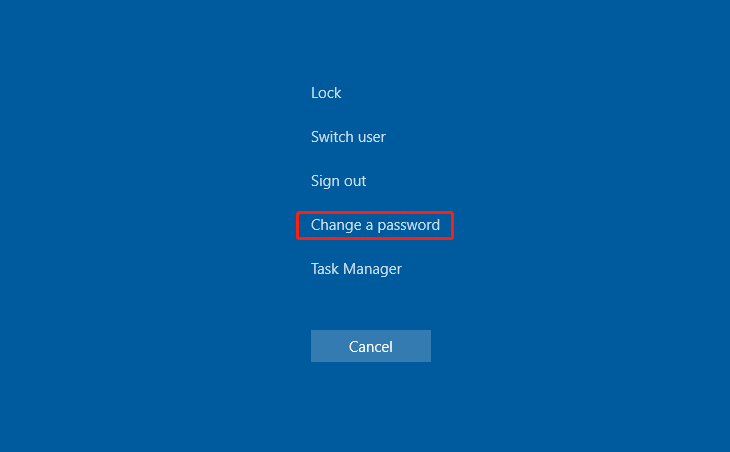
2. Select "Change a password"
You’ll see a few options on your screen, click Change a password to continue.
3. Enter your information
-
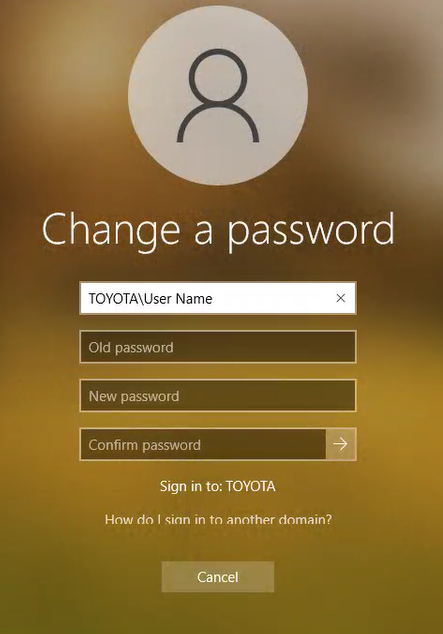
The top box will auto-fill with your username.
-
If needed, your username format is:
TOYOTA\Firstname.Lastname
-
-
Enter your current password in the first box.
-
Then type your new password twice; once in each of the bottom two boxes.
Password Requirements
Make sure your new password meets these guidelines:
-
At least 8 characters long
-
Includes uppercase and lowercase letters
-
Includes at least one number
-
Includes at least one symbol (!, @, #, $, etc.)
After Changing Your Password
This change will update your password for both Windows and Office 365 (Outlook).
Please note it may take up to one hour to sync fully with Outlook.

