


 150
150
Setting Up the Microsoft Authenticator App
Use this guide to download, set up, and use the Microsoft Authenticator App for secure access to your Dolan account.
Download the Authenticator App
The Microsoft Authenticator app is available for both Android and iPhone users.
-
Google Play Store: Microsoft Authenticator on Google Play
-
Apple App Store: Microsoft Authenticator on the App Store
Make sure you download the official Microsoft app, it’s completely free.
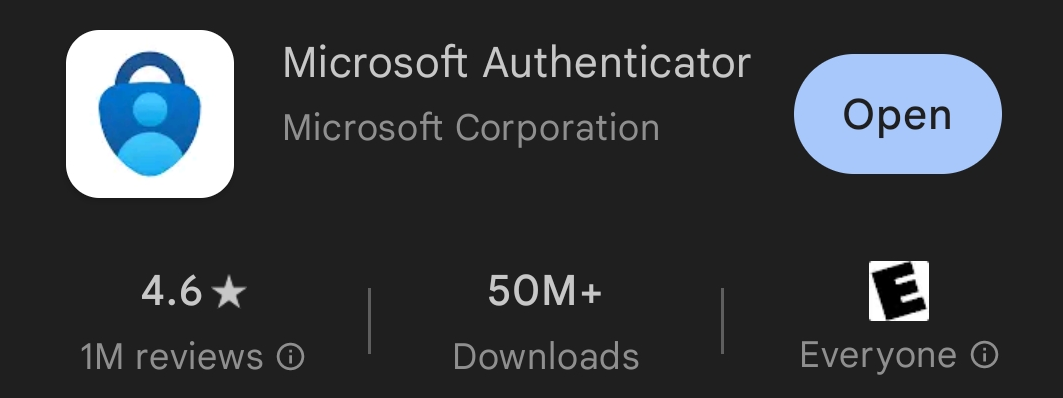
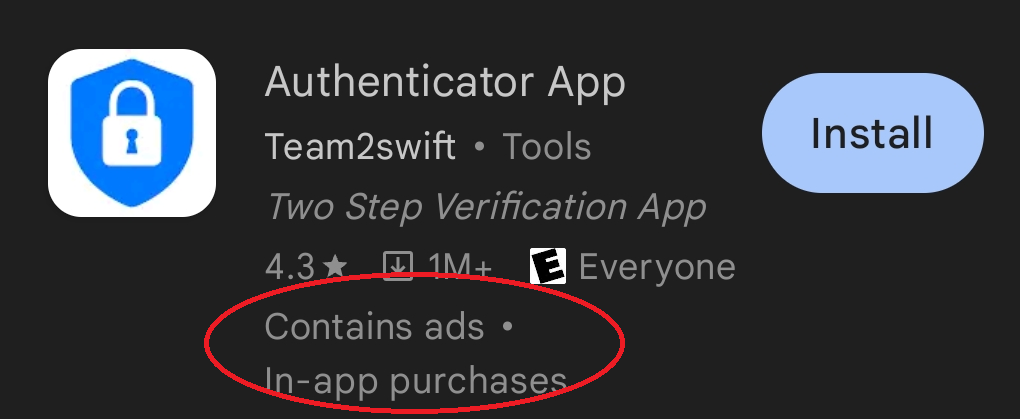
Avoid look-alike apps!
If the app listing shows “Contains ads” or “In-app purchases,” do not download it. Those are not official Microsoft apps.
Setting Up Authenticator for Outlook
1. Log in as usual
Sign in to your Dolan account. You’ll be prompted with a screen that says, “More information required.”
Click Next to begin the setup process.

2. Download the app (if you haven't already)
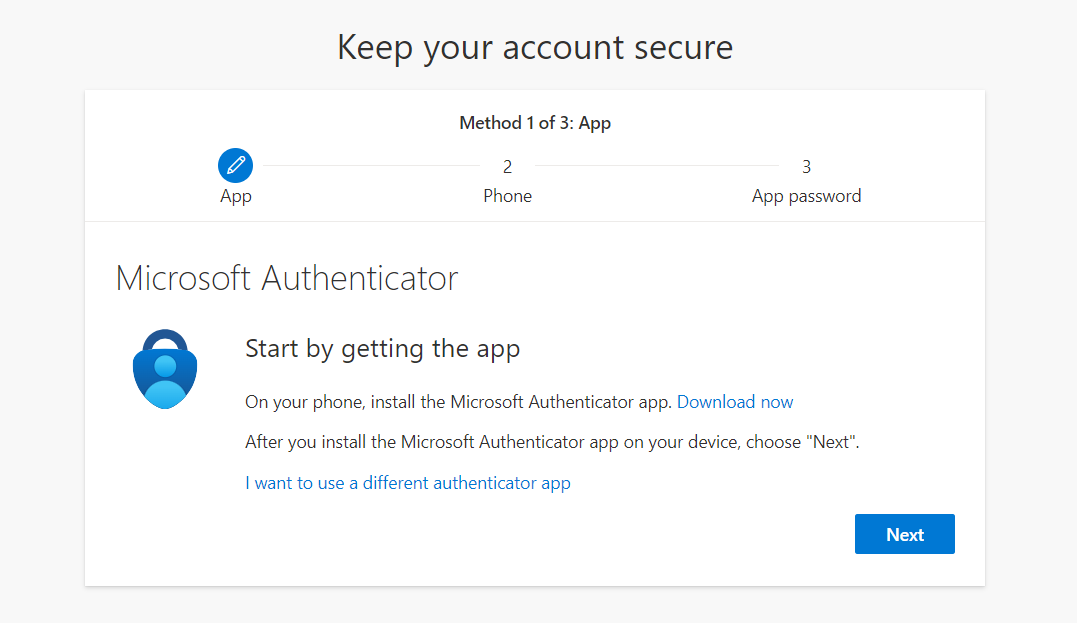
The next screen will instruct you to download the Microsoft Authenticator app.
If you’ve already done this, simply click Next.
3. Open the app and add your account
On your phone:
-
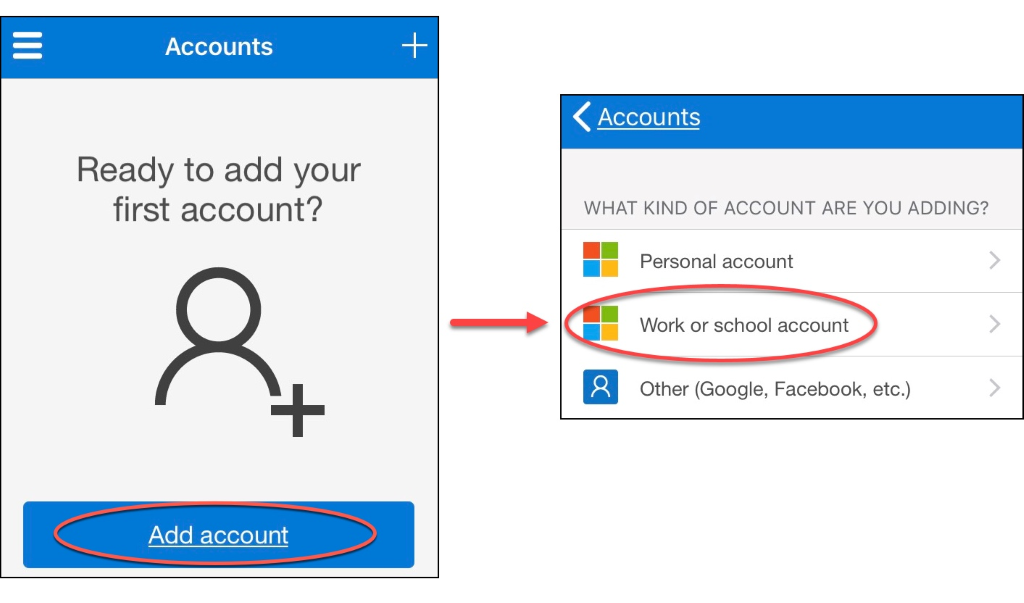
Open Microsoft Authenticator
-
Tap the “+” sign or “Add account”
-
Choose Work or school account
Then, click Next on your computer to continue.

4. Scan the QR code
Your computer will display a QR code.
On your phone, tap Scan QR code in the Authenticator app and scan the code shown on your computer.
Once complete, click Next.

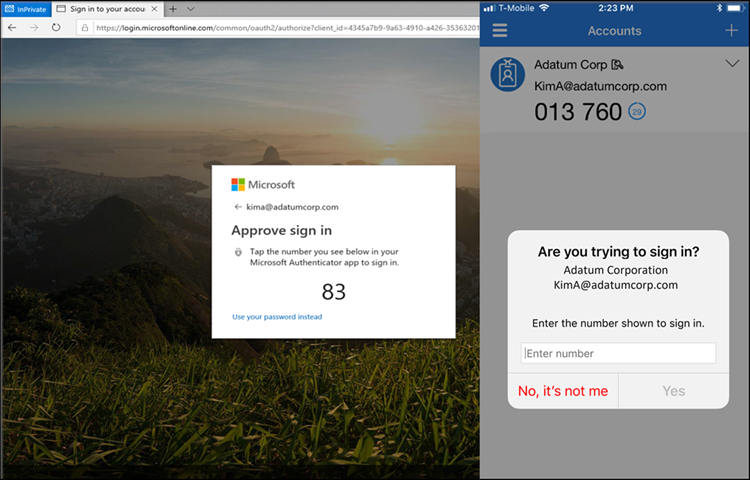
5. Approve the sign-in request
Your computer will show a number, and your phone will receive a push notification.
-
Tap the notification on your phone
-
Enter the number shown on your computer
-
Tap Yes to approve
6. Finish Set up
Once you see the “Approved” screen, click Next on your computer.

Note on Microsoft Office Login
When logging into Office apps, you may be asked to approve your login through the Authenticator app.
If your phone is secured with a password, fingerprint, or Face ID, you’ll use that feature to complete the sign-in approval.
That’s it!
You’re now set up with Microsoft Authenticator. Your account is more secure, and sign-ins are faster and easier.

